 WORLDGATE
Manual
From the first start to your own page, step by step and without prior knowledge. The pictures come from a demo installation; the house, the appliances and every number in it are made up.
Contents
What is Wissen!?
Wissen! is a programme for everything you need to look up some day at home, in the workshop or in a club: where the main water valve is, how to bleed the radiators, which Wi-Fi password applies – and the appliance manuals as PDFs.
You use it in the browser, the programme you otherwise surf the internet with (Safari, Chrome, Firefox, Edge) – on the computer, the tablet and the phone. The programme itself runs on a computer at home that is always on. That is also where your pages and PDFs live; they do not leave your home.
The three principles
- Folders are the truth. Wissen! keeps no hidden store of its own. Every page is a file in a folder you can open without Wissen! as well.
- Pages and PDFs are equals. What you write yourself and what a manufacturer supplies as a PDF sit in the same tree and turn up in the same search.
- Nothing gets lost. Saving keeps the previous version, and what you delete goes to the bin first.
Remember: Looking, browsing and searching never change your files. Take your time to look around.
What you need
- A computer that is always on. A NAS (network storage, e.g. from Synology or running Unraid), a Raspberry Pi or a small home server.
- Docker on that computer. Docker starts programmes ready-packed; the package is called a container. Most NAS come with Docker.
- A folder for your knowledge. It may be empty, or it may already hold manuals as PDFs.
- A device with a browser in the same home network.
If words like NAS, Docker or Markdown mean nothing to you: there is a small glossary at the end of this page. The installation is done once; if you have never done it, ask someone who already runs such a computer to help.
Installation
Wissen! comes as a ready-packed programme (a Docker image): ghcr.io/orohde/wissen. The source code is open at github.com/orohde/Wissen.
- Create a folder for Wissen! on the computer and in it a file named
compose.ymlwith this content:
services:
  wissen:
    image: ghcr.io/orohde/wissen:latest
    restart: unless-stopped
    ports:
      - "8460:8000"
    volumes:
      - ./wissen:/wissen          # your pages (.md) and PDFs
      - ./data:/data              # index, settings, accounts
    environment:
- TZ=Europe/Berlin- Put the folder for your pages and PDFs in place of
./wissen, and an empty folder for Wissen!’s own data in place of./data. - Start the programme with
docker compose up -d. - Open
http://YOUR-COMPUTER-NAME:8460in the browser.
The two folders
- Archive (
/wissen): your pages and PDFs. Every folder directly inside it becomes an area. - Data (
/data): where Wissen! keeps its index, the settings, the accounts and the earlier versions of your pages.
Remember: Back up both folders regularly. The archive is your knowledge; the data folder holds accounts and earlier versions.
Unraid
There is a ready-made template for Unraid. Search for Wissen in the Apps tab. If it is not listed (yet): under Docker → Template repositories add https://github.com/orohde/unraid-templates, save, then Add Container and pick the Wissen template.
- Pages: the share holding your pages and PDFs, e.g.
/mnt/user/Wissen. Every top-level folder becomes an area. - Data: e.g.
/mnt/user/appdata/wissenfor index, settings, accounts and earlier versions. Include it in your backups.
Wissen! runs as nobody:users (99:100) there, like Unraid's shares. Empty folders created on install are taken over, existing ones are left alone. Unraid shows updates like for any other container.
The first start
On the very first visit Wissen! shows a setup page. There you create the first account: a user name and a password. This account is the administrator; it sees all areas and may change the settings. The setup page appears only once and only from the home network.
Then Wissen! reads your archive. It takes the text out of PDFs so the search can find it. For scanned manuals without a text layer it recognises the text itself (German and English); the first time this can take a while. You can browse in the meantime. Later Wissen! looks regularly for anything new.
Language
Wissen! speaks German, English, French and Italian. At first it follows your browser; you change the language under the gear → My account. The choice belongs to your account and applies on every device.
Folders, areas and files
Every folder directly in the archive is an area, for example House, Manuals and Tech. Areas are the unit for rights: who may see or change which area is set per person. Below them you may create folders as deep as you like.
- Pages are text files ending in
.md(Markdown). At the top there is a short head with title, date and tags; Wissen! writes it for you. - PDFs are manuals, data sheets, plans – anything that comes as a PDF.
- A page’s pictures live in a folder right next to it, named like the page with
.assetsadded.
This is what a page looks like as a file:
---
title: Bleeding the radiators
date: 2026-11-03
tags: [Heating, How-to]
---

When a radiator stays cold at the top, there is air in it.

## Step by step

1. Pump off, wait five minutes.
2. Open the valve half a turn.

> [!IMPORTANT]
> Below 1.2 bar, top up with water – see [Service](Service.md).
Top left in Wissen! you switch areas on and off; in the tree on the left you pick a folder.
The start page
Wissen! opens with your start page. At the top are the documents you pinned, below them what changed last.
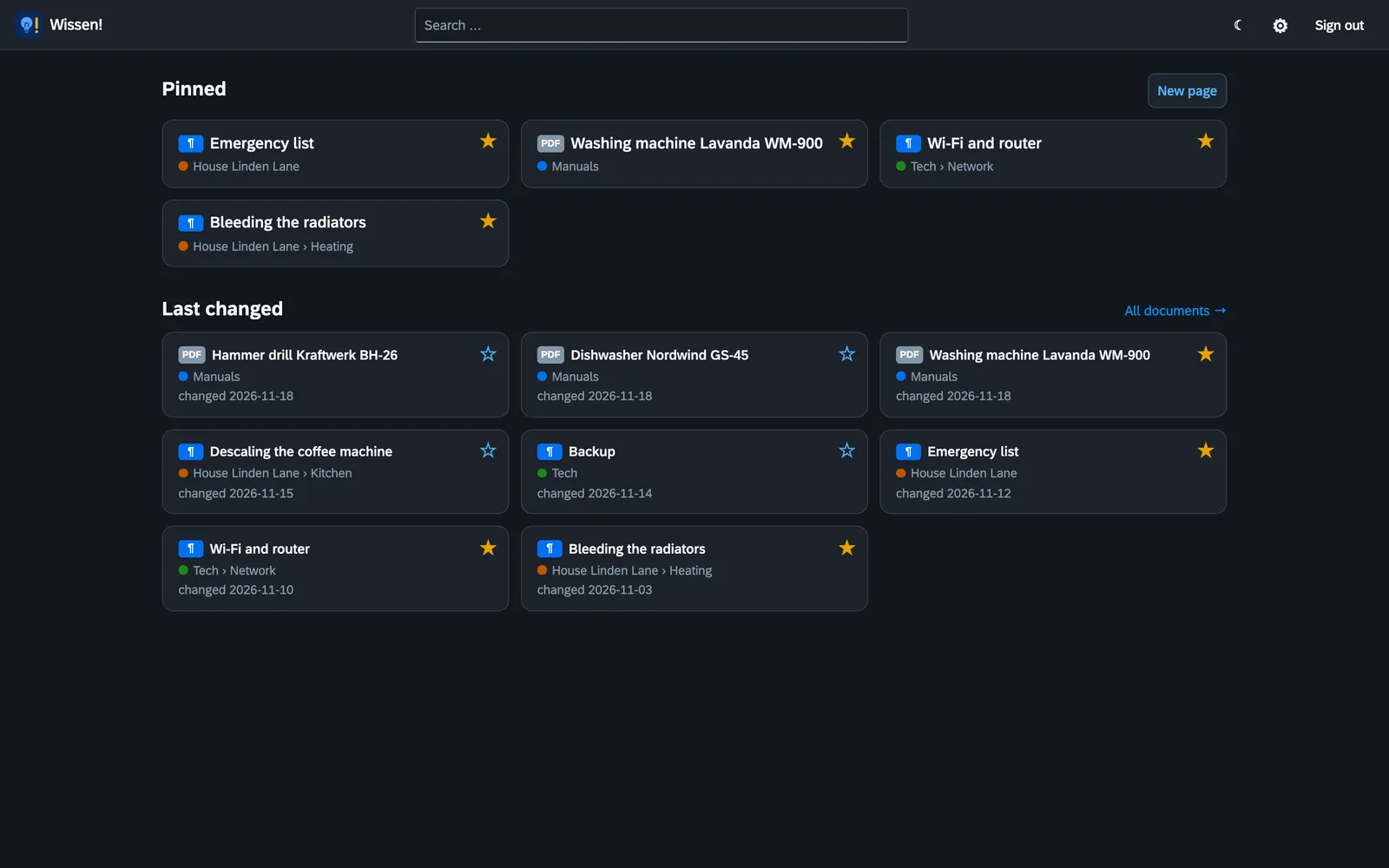
Pin a document with the star on a page or in the ⋯ menu in the list; a second click on the star takes it off again. Everybody has their own start page; what you pin, others do not see.
All documents takes you to the archive with tree and list. The Wissen! sign top left always brings you back to the start page.
Searching and finding
Type into the search field at the top and press Enter. The search covers the whole text: your pages and the PDFs. Under every hit you see the spot where the word occurs.
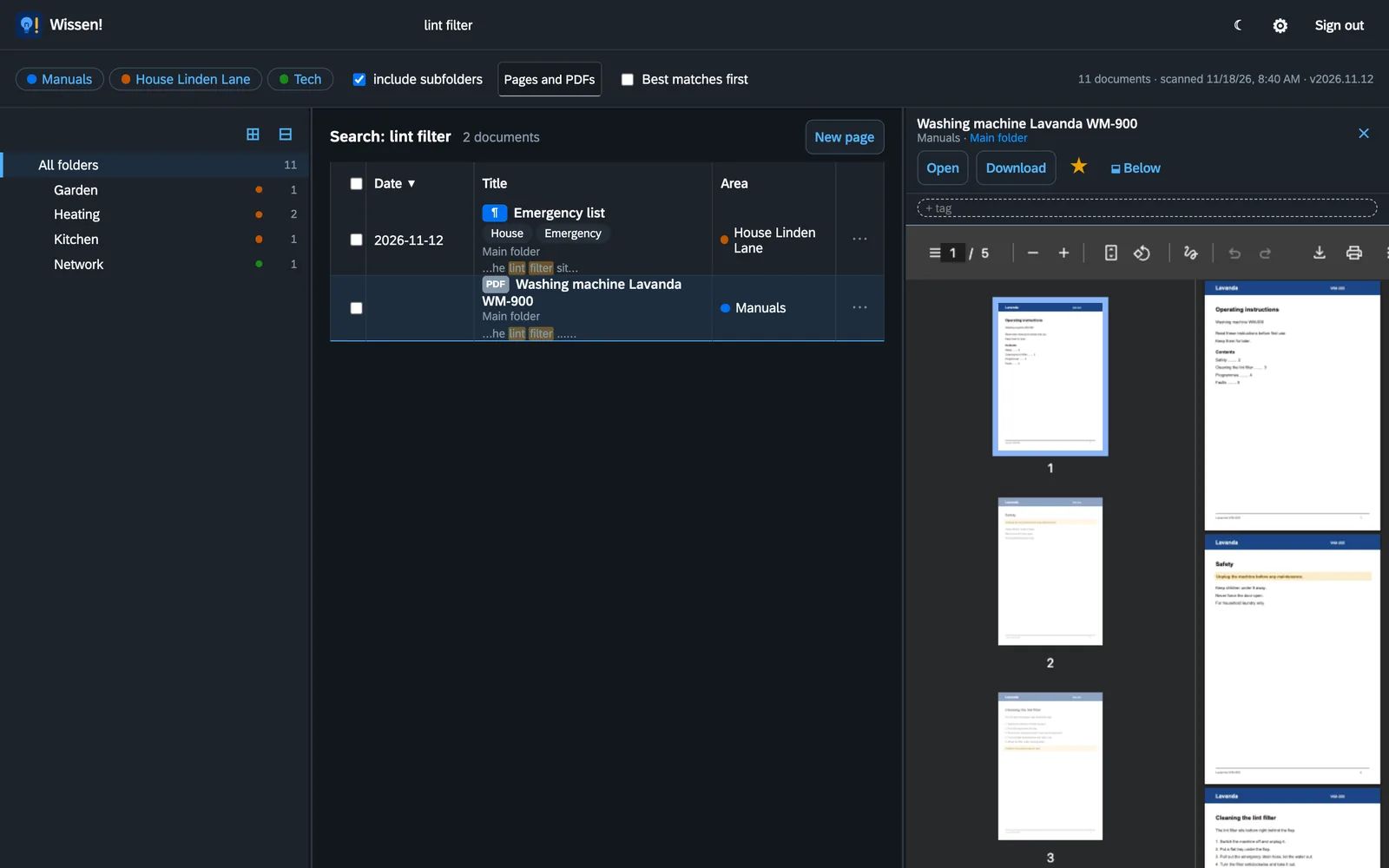
- Areas top left narrow the search.
- Pages and PDFs can be switched to pages only or PDFs only.
- Best matches first sorts by match instead of date; hits in the title come first.
- Tags are another filter. For pages they sit in the head of the file; for PDFs you add them in the preview with + tag.
A click on a hit opens the preview on the right. A PDF is shown there with page thumbnails, a page ready typeset.
Reading pages
A page opens large, with the path through the folders at the top. Top right you find Edit, the star for pinning, Markdown (shows the text as it stands in the file), Download and the ⋯ menu.
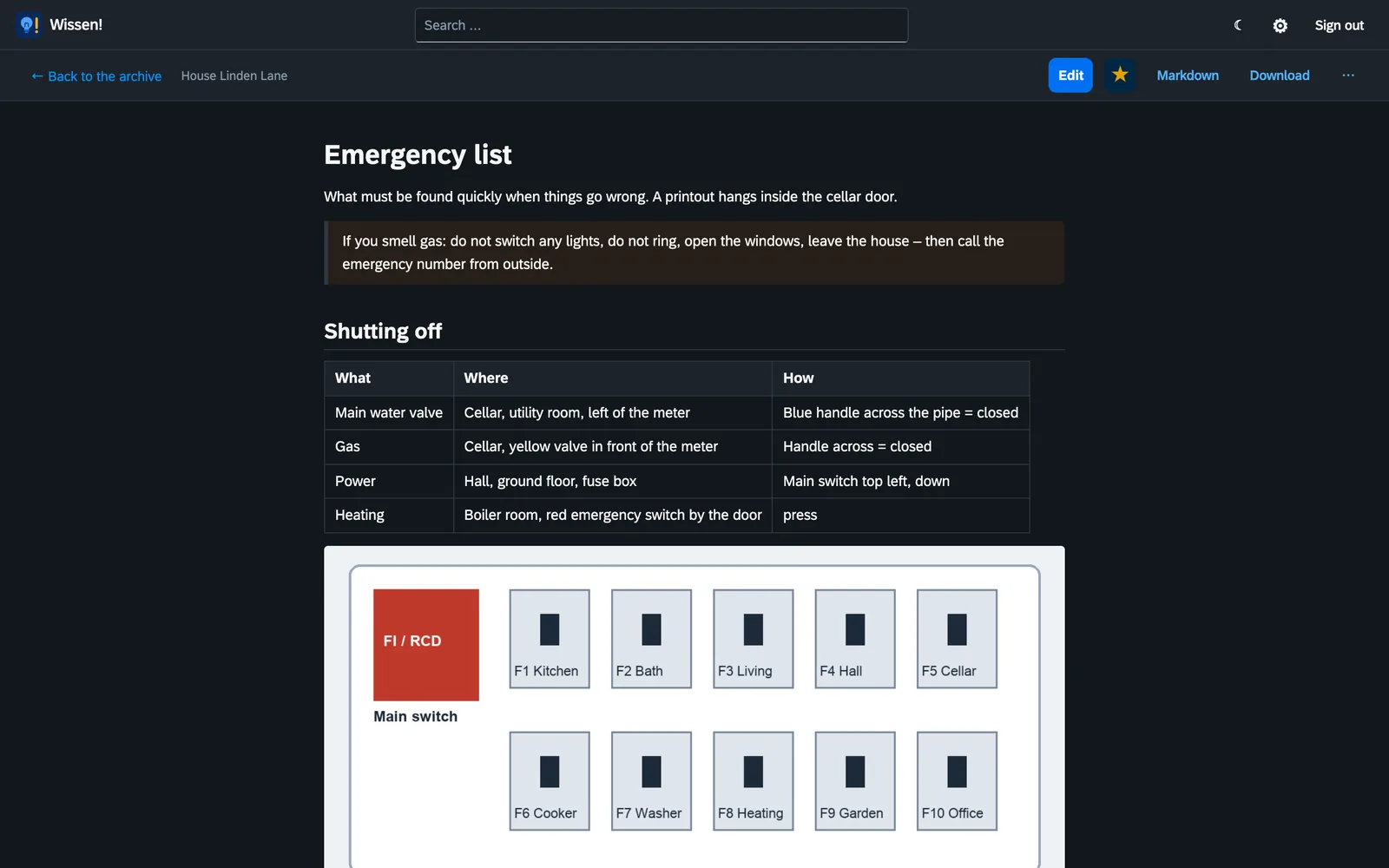
Links in a page lead to other pages, to a section or straight to a given page of a PDF. Coloured boxes set off notes, tips and warnings.
- Contents: a page with three or more sections shows a table of contents at the top. You can fold it away; Wissen! remembers how you like it.
- Link to a section: when you move over a heading, a # appears next to it. Clicking it copies a link that opens the page right at that spot.
- Footnotes are small raised numbers; a click jumps to the note below, the arrow ↩ back again.
- Diagrams are drawn by Wissen! from their description in the text. If one is too big for the width, a tap shows it at full size.
- Maps can be moved and zoomed; tapping a point or an area shows its name.
Writing a page
New page is on the start page and above the list. Wissen! asks for the title, the area and the folder, creates the file and opens it for writing straight away.
You change an existing page with Edit. There are two views, switched top right:
- Formatted shows the page as it will look. The toolbar above has buttons for bold, italic, headings, lists, tasks, quotes, links, pictures and tables.
- Source shows the Markdown text; with Preview the finished page stands beside it.
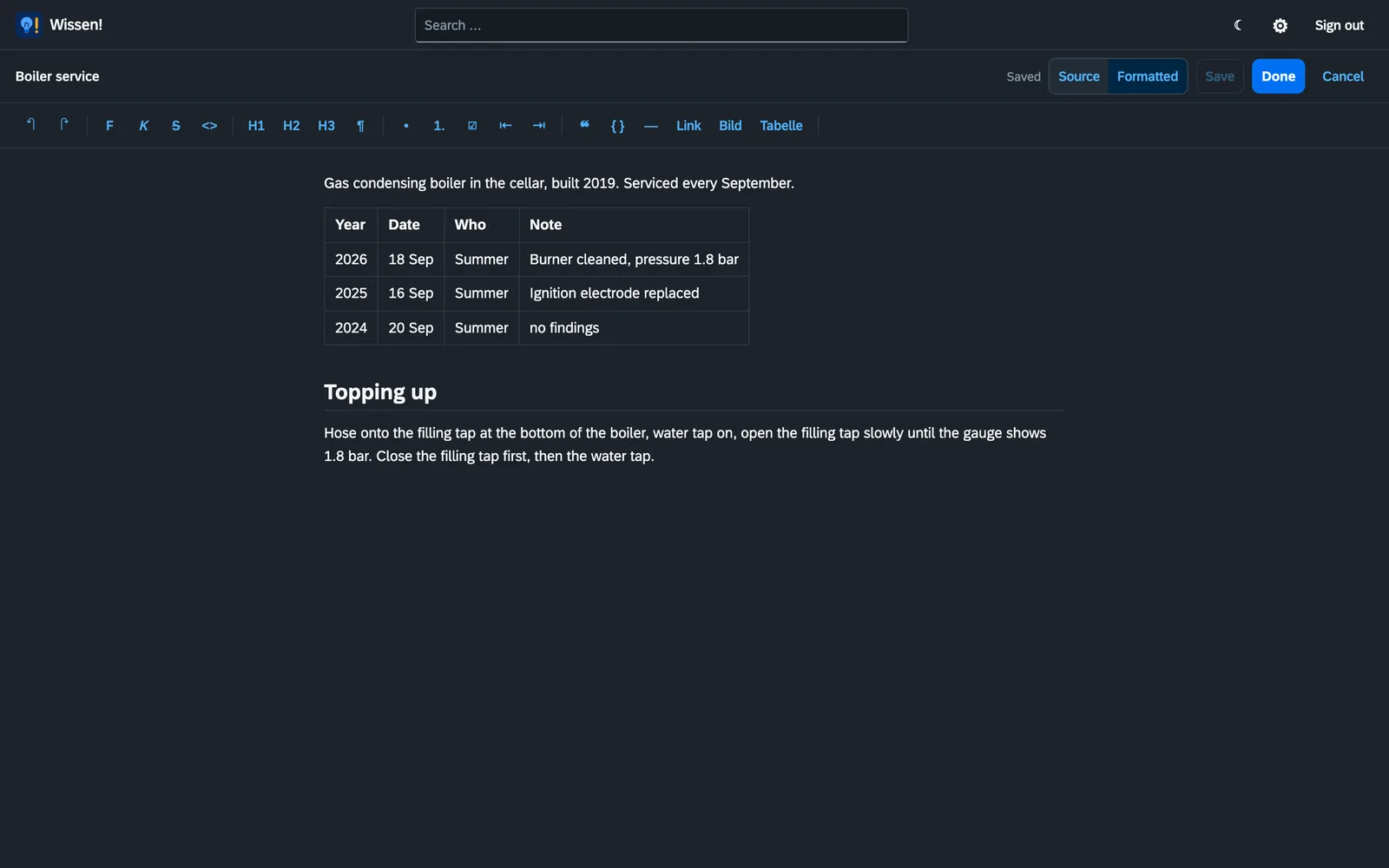
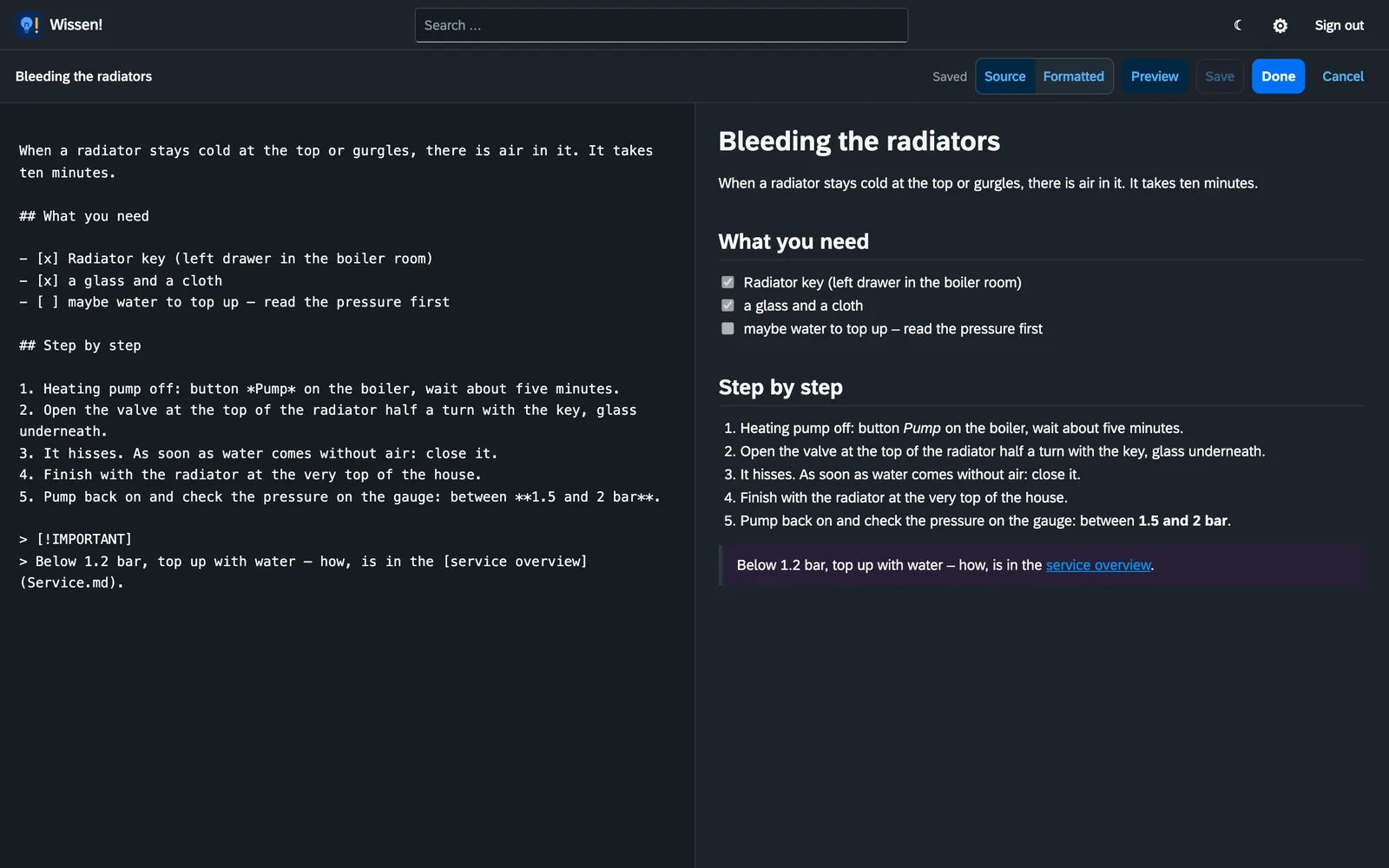
Save writes the current state into the file, Done saves and closes, Cancel discards what changed since the last save.
What happens when you save
- Wissen! rewrites only the paragraphs you changed. Everything else stays character for character as it was.
- If a change in the formatted view cannot be saved without loss, Wissen! switches to the source and shows you the spot. It saves nothing on its own.
- The previous version of the page is kept in the data folder.
One writes, the others wait
While you edit a page it is locked for others; they see who is writing. If you simply close the laptop, the lock ends by itself after a few minutes.
Markdown in five minutes
Markdown is a way of writing text that stays readable without any programme. In the formatted view you need not know it; for the source this is enough:
| You write | You get |
|---|---|
## Heading | a heading |
**bold**, *italic* | bold, italic |
- point | a bullet list |
1. step | a numbered list |
- [ ] task | a box to tick |
[Service](Service.md) | a link to another page |
[Manual](../manuals/Washer.pdf#page=3) | a link to page 3 of a PDF |
 | a picture |
[see below](#next-steps) | a link to a section of the same page |
[Filter](Service.md#filter) | a link to a section of another page |
==important== | important (highlighted) |
text[^1] and below [^1]: source | a footnote |
Wissen! names a section from its heading the way GitHub does: lower case, spaces become hyphens, punctuation is dropped. ## Next steps becomes #next-steps. The easiest way is to copy the link with the # next to the heading.
Callout boxes
A quote that starts with a keyword in square brackets becomes a coloured box. There are [!NOTE], [!TIP], [!IMPORTANT], [!WARNING] and [!CAUTION]:
> [!WARNING]
> If you smell gas: do not switch any lights, leave the house.
Collapsible sections
Long logs or rarely needed details hide behind a line that unfolds. Leave an empty line between the lines with angle brackets and the text inside:
<details>
<summary>Boiler error codes</summary>

- F28: no flame
- F75: pressure switch

</details>
Code, diagrams and maps
Text between three backticks stays as it is. With a language after the first three it is shown in colour – for example yaml, bash, python or json:
```yaml
services:
  wissen:
    image: ghcr.io/orohde/wissen:latest
```
With mermaid Wissen! draws a diagram from the description, with geojson a map with points and areas (the map comes from OpenStreetMap). GitHub shows both the same way.
```mermaid
flowchart LR
  Meter --> Inverter --> Battery
```
```geojson
{"type": "Feature",
"properties": {"name": "Main water valve"},
"geometry": {"type": "Point", "coordinates": [8.68, 50.11]}}
```If a diagram or map is described wrongly, Wissen! shows a short note with the text below it, so you can find the spot.
Adding pictures
While editing, the Picture button adds a picture from your computer or phone. Wissen! puts it into the folder next to the page (Page.assets) and sets the reference in the text. In the source you can also simply drag a picture into the text field.
Because the pictures live next to the page, they move with it and stay easy to find without Wissen!.
Rename, move, delete
The ⋯ menu on every document – in the list, on the start page and at the top of a page – offers Rename, Move (to another folder or area) and Move to the trash.
What you delete waits in the trash and can be brought back from there. How many days it stays before Wissen! deletes it for good is set by an administrator under the gear → Storage.
People and rights
Under the gear → Users the administrator creates further accounts. For every person and every area there are three levels: no access, read or read + write. An administrator sees all areas and may change the settings.
So the family can read the emergency list while only two people change it, and the Tech area stays invisible to the others.
Securing the sign-in
Under the gear → My account you change your password and switch on the second factor: after the password Wissen! asks for a six-digit number from an app on your phone (a password manager or an authenticator app, for instance). You also get recovery codes in case the phone is lost – keep them safe.
There you also see where you are signed in and can end other sessions. Further protection for access from outside is under Security for the administrator.
For tinkerers: the REST API
Everything the interface can do also works through a REST API: search, read pages, create and save them, upload pictures. The API describes itself under /api/docs.
Under the gear → API the administrator creates keys, one per programme, either read only or read and write. A key is shown only once and can be revoked on its own.
New versions
Once a day Wissen! asks version.worldgate.de whether there is a new version. If there is, administrators see a button with instructions at the top. Only the app name, the installed version and the kind of installation are sent – no identifier, no documents, no names. You can switch it off under the gear → System.
You fetch the new version in the folder with the compose.yml with docker compose pull and docker compose up -d. Pages, PDFs and settings stay as they are.
Small glossary
- NAS
- Network storage: a small computer with hard disks that serves files in the home network and is usually always on.
- Docker, container, image
- Docker starts programmes ready-packed. The package you download is the image; the running programme is the container.
- Markdown
- A simple way of writing text with headings, lists and links that stays readable as a bare text file.
- Head block
- The few lines between two
---at the very top of a page: title, date, tags. - Text recognition (OCR)
- Reads text out of a scanned picture so the search can find it.
- Area
- A folder directly in the archive. Rights are given per area.
- API
- An interface through which other programmes can talk to Wissen!.