 WORLDGATE
Manual
Everything about installing, setting up and living with Ordnung!. The pictures come from a demo with the invented Muster family.
Contents
Installation
Ordnung! ships as a Docker image for amd64 and arm64. It needs three folders: the archive holding your documents, a data folder for index, settings and accounts, and optionally one or more inbox folders a scanner writes to.
services:
  ordnung:
    image: ghcr.io/orohde/ordnung:latest
    restart: unless-stopped
    ports:
      - "8440:8000"
    volumes:
      - ./archiv:/archiv
      - ./data:/data
      - ./eingang:/eingang
    environment:
      - TZ=Europe/Berlin
Start with docker compose up -d and open http://server:8440. On the first visit Ordnung! shows a setup page for the first administrator (home network only). Every other setting lives in the app, not in the compose file: accounts, text recognition and its languages, home network, API key, mail inbox and AI.
The archive must be writable for the container, since Ordnung! files, moves and renames documents there. On Synology and friends that means the right user or permissions for the folder.
Unraid
There is a ready-made template for Unraid. Search for Ordnung in the Apps tab. If it is not listed (yet): under Docker → Template repositories add https://github.com/orohde/unraid-templates, save, then Add Container and pick the Ordnung template.
- Archive: the share holding your documents, e.g.
/mnt/user/Dokumente. Every top-level folder becomes an area. - Data: e.g.
/mnt/user/appdata/ordnungfor index, settings and accounts. Include it in your backups. - Inbox (scanner): optional, the folder your scanner writes to.
Create the first account on the setup page afterwards.
Ordnung! runs as nobody:users (99:100) there, like Unraid's shares. Empty folders created on install are taken over, existing ones are left alone. Unraid shows updates like for any other container.
Setting up
Under Settings → Storage you choose:
- Archive folder: where the documents live. Ordnung! offers the folders available to the container.
- Inbox folders: e.g. the folder your scanner writes to. Tick active and Ordnung! reads it every minute. After filing, the original moves to
_importiert, stays where it is or is deleted. Deletion only happens once the archive copy is confirmed identical by checksum, either right away or after a number of days you choose. - Areas: display names and new areas, see below.
- Trash: after how many days deleted documents are removed for good (default 30, 0 = never).
Under Settings → Users you create accounts and grant read or read + write per area. Administrators see every area and may change settings.
Keep your existing folders
Ordnung! needs no structure of its own. Point the archive folder at your existing filing and it is taken over as it is:
- Files need not be renamed. If a name does not start with a date, it becomes the title and the date stays empty – add it later with the pencil ✎. Newly filed documents are named
date_title_id. - PDF, images (JPG, PNG, TIFF), Word (DOCX) and text files are read. Anything else stays untouched.
- The top folder level are the areas. If
Insurance/,Banking/… sit directly in your archive, move them once into a folder such asfamily/. That is the only step.
Learning from what is there: who writes to you and which folder their post belongs in, Ordnung! works out from your existing letters by itself (Rules → Senders). Fixed rules are one click away with Create rules from the archive: Ordnung! looks for contract and customer numbers, IBANs and words that occur in one folder only and measures every rule against the whole archive – no AI, no cost. After that it keeps learning with every document you file.
Browsing the archive
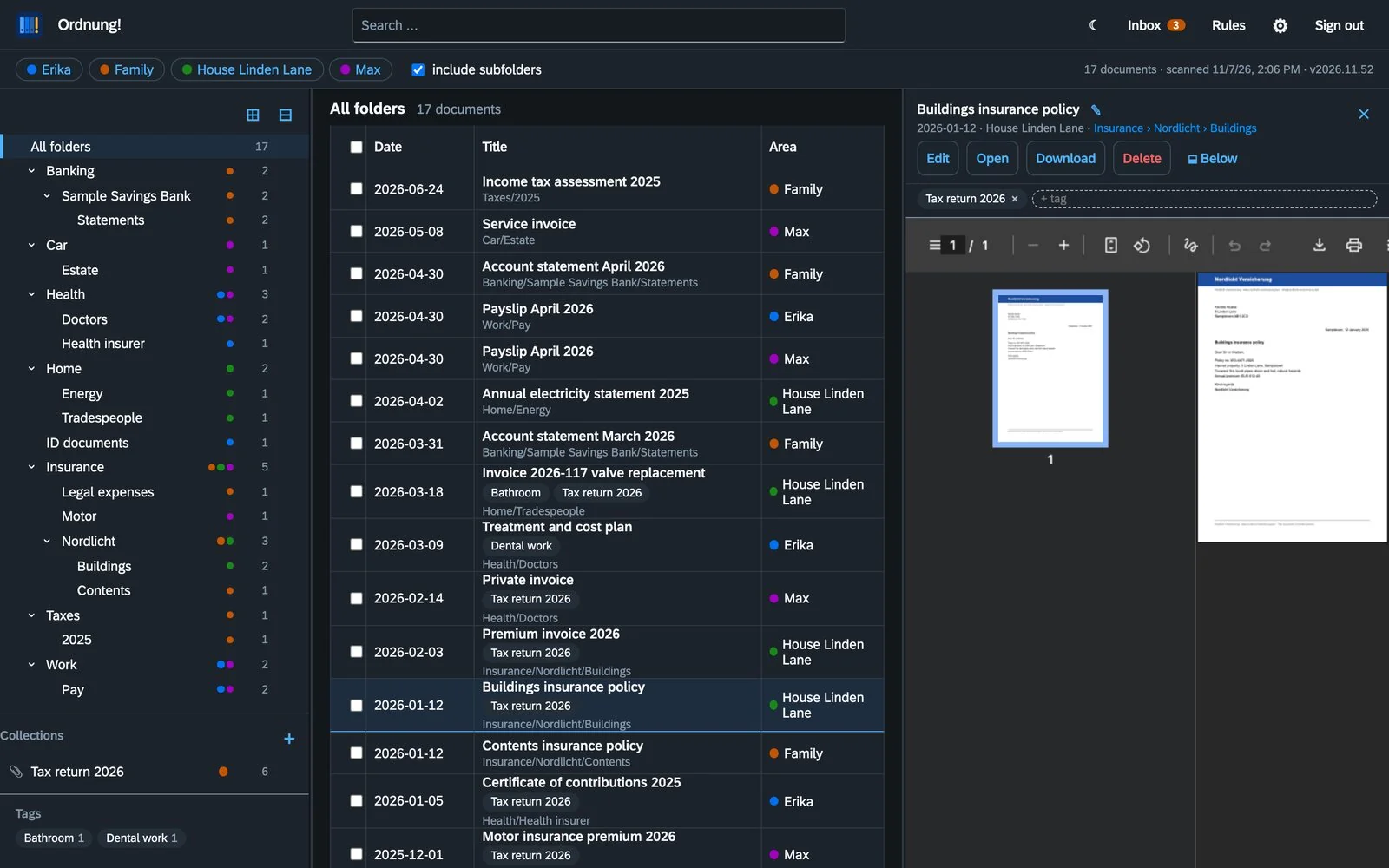
- On the left the tree of all areas you may read, with counts and a coloured dot per area. Empty template folders are shown in grey. ⊞/⊟ expands or collapses everything; what is open is remembered per person on all devices.
- At the top the area switches: switched-off areas disappear everywhere.
- Click a document to preview it. ⬓ Below moves the preview under the list; the dividers can be dragged. The folder under the title links into the tree.
- Move: drag a document from the list onto a folder; ticked documents move along. Administrators create, rename or delete empty folders through the ⋯ on each row.
- Title and date are changed with the pencil ✎ in the preview. Both are part of the file name; the id stays.
- ⋯ at the end of every document row: Edit properties changes title, date, area, folder and tags in one dialog. Moving to another area needs write access to both areas; tags and collections stay attached. Also open, download, show in the folder tree and trash. On a phone this is the way to move documents.
- Delete moves to the trash; Undo shows up for a few seconds.
Search
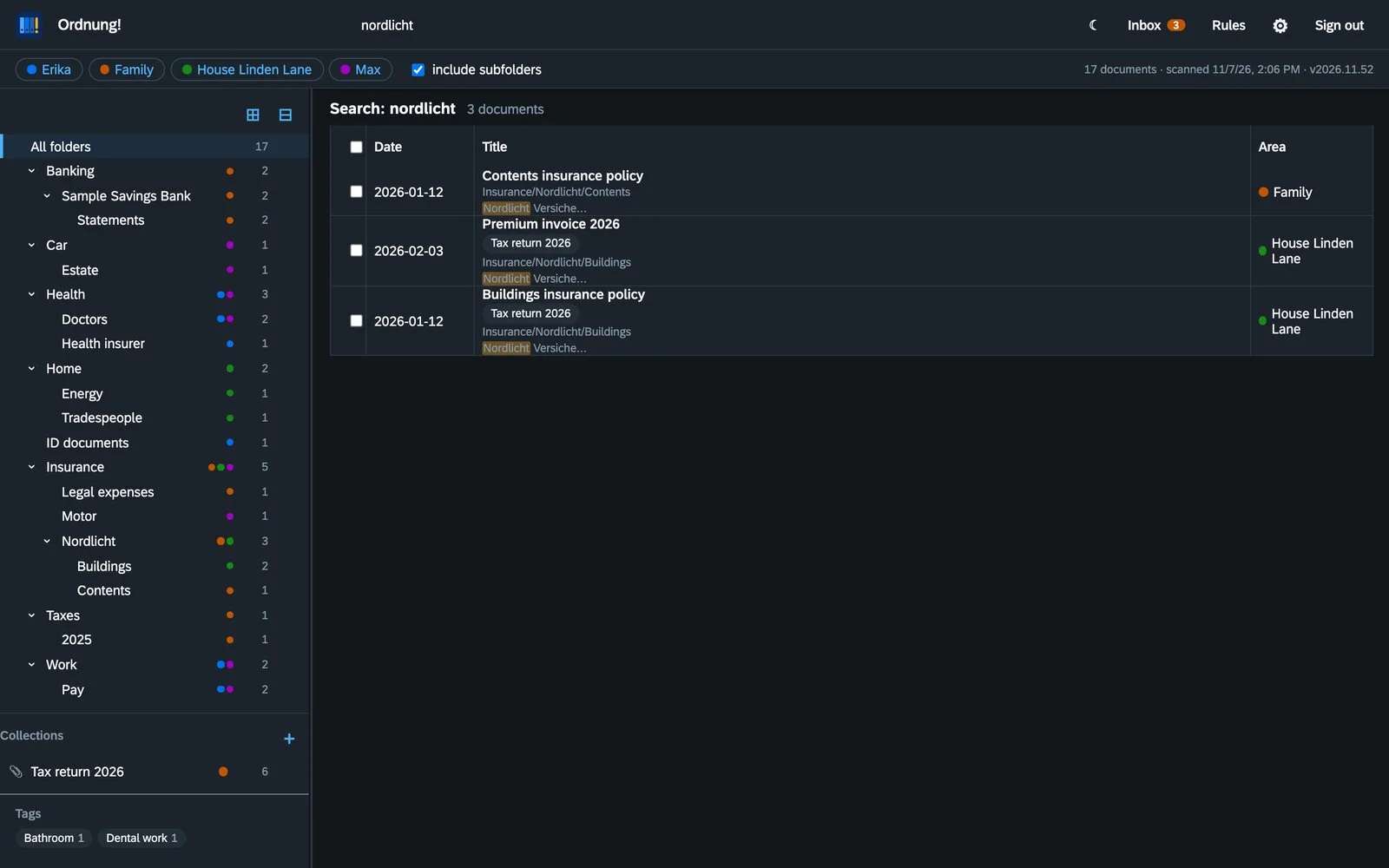
The search box always searches the whole archive: titles, folder names and the text of every page, scans included via OCR. Case and accents do not matter, all words must occur, parts of words from three letters on are enough. #taxreturn2026 filters by a tag and can be combined with search words.
Inbox and upload
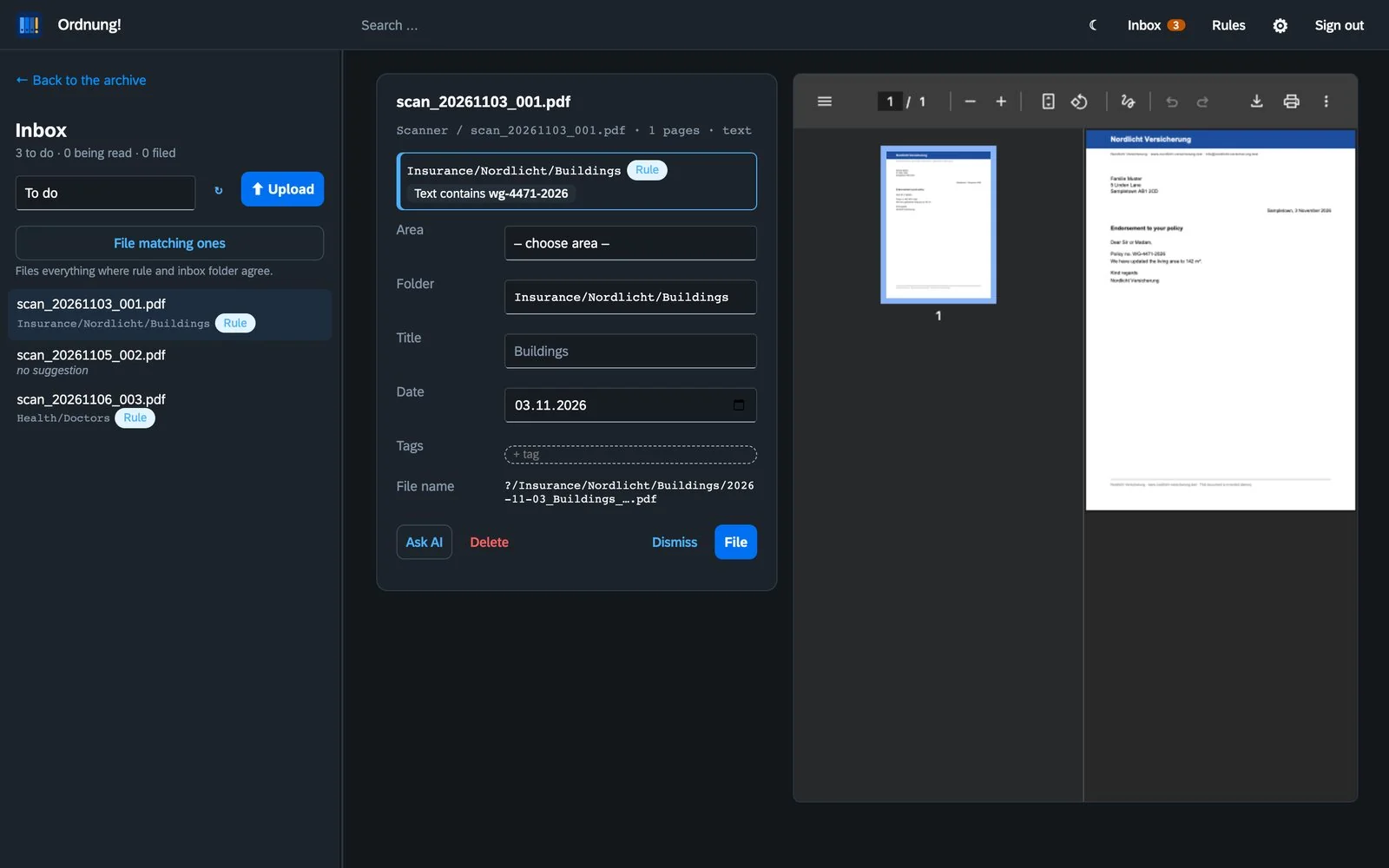
New files from the inbox folders appear in the inbox. Ordnung! reads the text, estimates the date and suggests area, folder and title. It also tells you where a suggestion comes from: rule, inbox folder (a subfolder of the inbox with the same name) or AI.
Pre-sorting with subfolders
Subfolders of an inbox folder already do half the filing. If the first subfolder is named like an area, the area is set. Deeper folders set the target folder too:
Scanner/hanna/→ area hanna; rules or the AI suggest the folderScanner/hanna/Certificates/Training/→ area and folder are set
That way you pre-sort right at the scanner or in the file manager, without an inbox folder per area. Do not add an inbox folder inside another one: it is not needed, and files would show up twice. A fixed area on an inbox folder is only worth it for folders elsewhere, such as a second scanner.
File, dismiss, delete
- File copies into the archive; what happens to the original is set on the inbox folder.
- Dismiss only hides the file, it stays in the inbox folder. The selector above the list (To do) shows everything hidden under Dismissed, where Bring back restores it.
- Delete removes junk such as failed scans from the inbox folder for good, after asking.
- Already filed: if exactly the same file (same checksum) is already in the archive, the inbox says so. Clicking the path opens the filed copy; Dismiss sits right next to it.
- File matching ones files everything where rule and inbox folder agree.
- ⬆ Upload takes PDFs, photos and Word files straight from the browser. On the iPhone the button offers camera, photo library and files. Photos (HEIC too) become PDFs; several pages can become one document.
- After filing, Ordnung! may ask “Shall Ordnung! remember this?” – see Rules.
Mail inbox
PDFs into the inbox by mail: send them to an address of their own or simply forward them, from the phone or the computer. Ordnung! collects the mails via IMAP every minute.
- Setup: create a mailbox of its own, say
inbox@example.org, and enter IMAP server, user and password under Settings → Mail inbox. Test connection checks access, Collect now does not wait for the next minute. - Known senders: with every user, E-mail addresses lists the addresses they send from, several separated by commas. Ordnung! only takes mails from these addresses.
- Area preset: Hanna's mail arrives with area hanna. For another one, say family, set Mails belong to on the user.
- PDFs only: Ordnung! takes the PDF attachments, forwarded mails included; every PDF becomes a document. Pictures, logos and the mail text stay out.
- Refused: mails from unknown addresses, without a PDF or with a forged sender (according to the mail server's checks) are moved to the folder Abgelehnt in the mailbox and deleted after 7 days (configurable, 0 = at once). Taken mails end up in Abgelegt. The settings page lists recent mails with their result.
Rules and senders
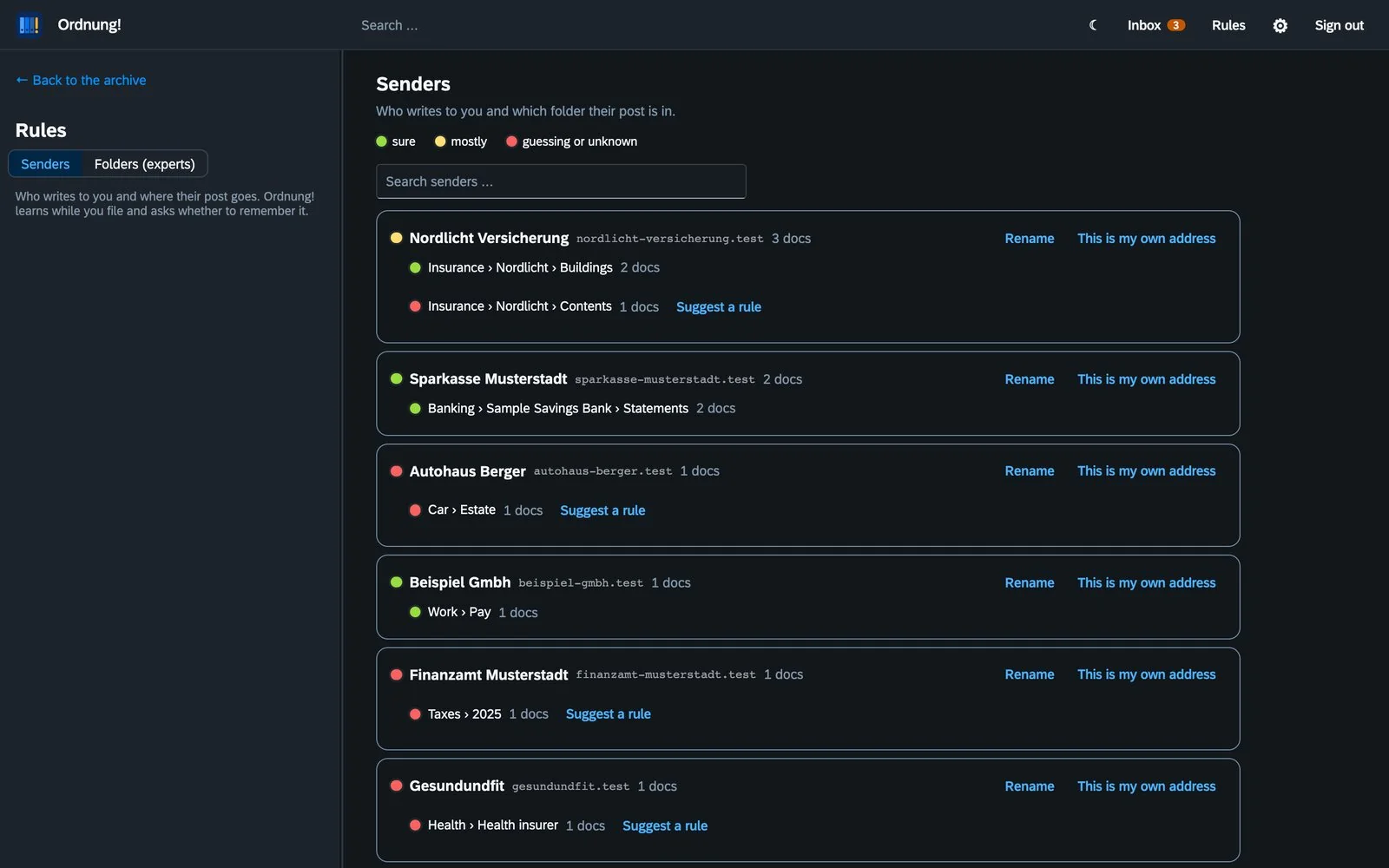
You normally do not write rules in Ordnung!. After filing it asks whether to remember, e.g. “Post from Nordlicht Insurance → Insurance › Nordlicht › Buildings”, with sample letters to look at. It only asks if the rule would not catch a single letter from another folder.
The traffic light shows how reliable that is: green sure, yellow mostly, red guessing or unknown. Rules → Senders lists every sender with their folders; Suggest a rule asks the same question later. Folders (experts) shows rules with their conditions (contains, identifier, pattern) and measures each against the archive: “12 of 30 in the folder · 0 outside ✓”.
AI (optional)
Under Settings → AI you can add a provider: Claude, Ollama on your own server or another OpenAI-compatible service. The AI gets text, folder list and a few examples and only suggests existing folders. Areas can be excluded, a monthly limit caps the cost, and several named instructions are offered in the inbox. Ordnung! works fully without AI.
Tags and collections
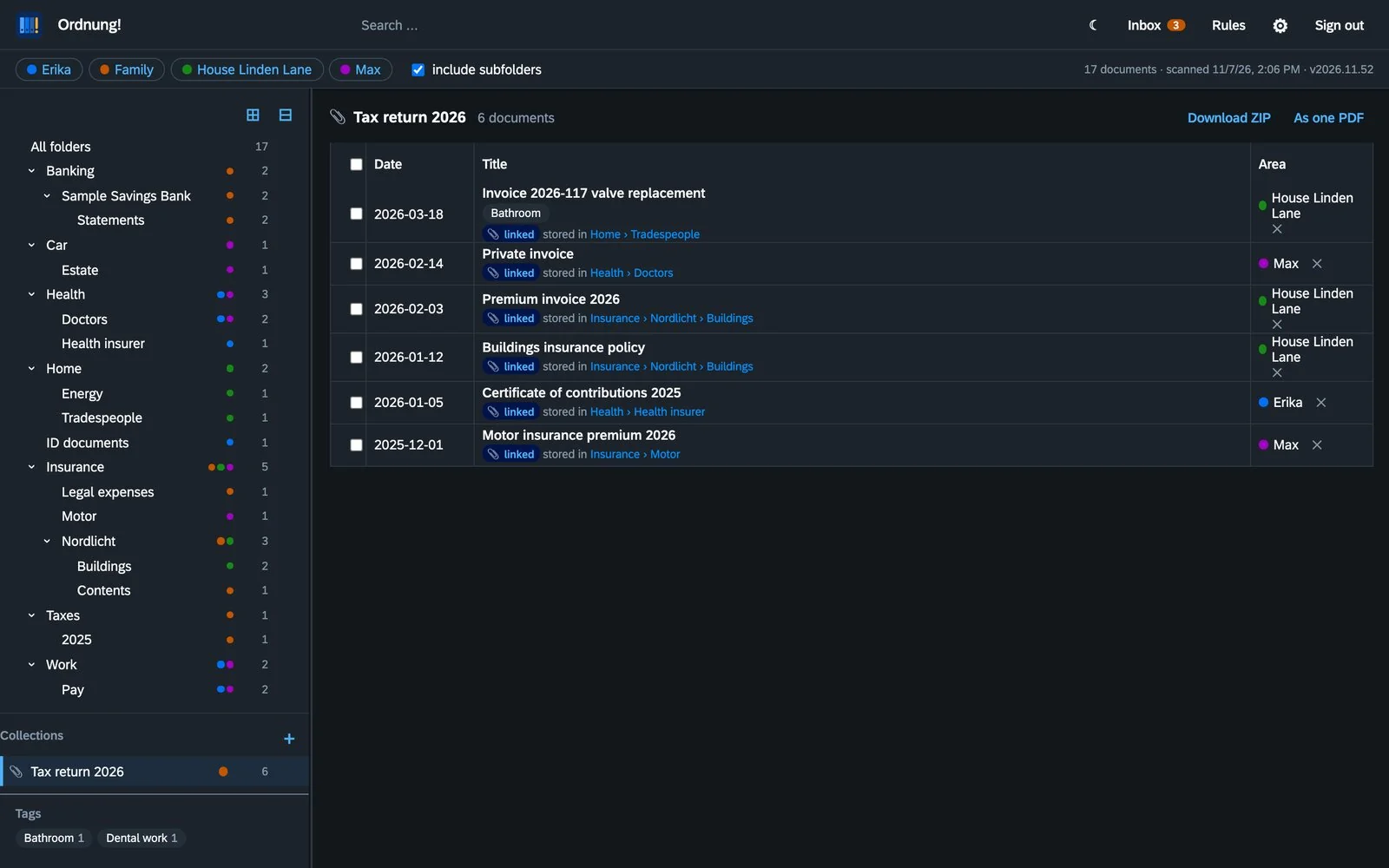
Tags are keywords across folders: type them at + tag in the preview or set them for many ticked documents at once.
Collections gather documents without moving them, e.g. Tax return 2026. Create one with + under Collections and assign it to an area; only people who may read that area see it. Dragging documents onto a collection links them (dragging onto a folder moves them). Inside a collection every document shows where it really lives. Download ZIP and As one PDF fetch everything at once.
The tag list on the left folds away via its heading. Tags that only sit on documents in the old files appear there once you open the old files or include them in the search.
Old files
For papers you no longer need but want to keep: old bank statements, the bank you left years ago, the lease of your previous flat. In the old files they are out of sight, not gone.
- Put away: single documents via ⋯ → Move to old files or ticked via the bar, whole folders via ⋯ on the folder (when a business relationship ends, say), or everything older than a number of years via ⋯ on All folders → Put away old documents, with a preview before anything moves.
- Where they are: at the bottom of the folder tree, set apart and paler, with the old folder structure below.
- Search: the normal search leaves the old files out. Tick Search old files too to find them too.
- Take back: via ⋯ on the document or folder. Everything returns to its old folder.
- The files are plain files under
<area>/Altablage/<old folder>/, so they stay backed up and readable in any file manager.
Fill in and sign PDFs
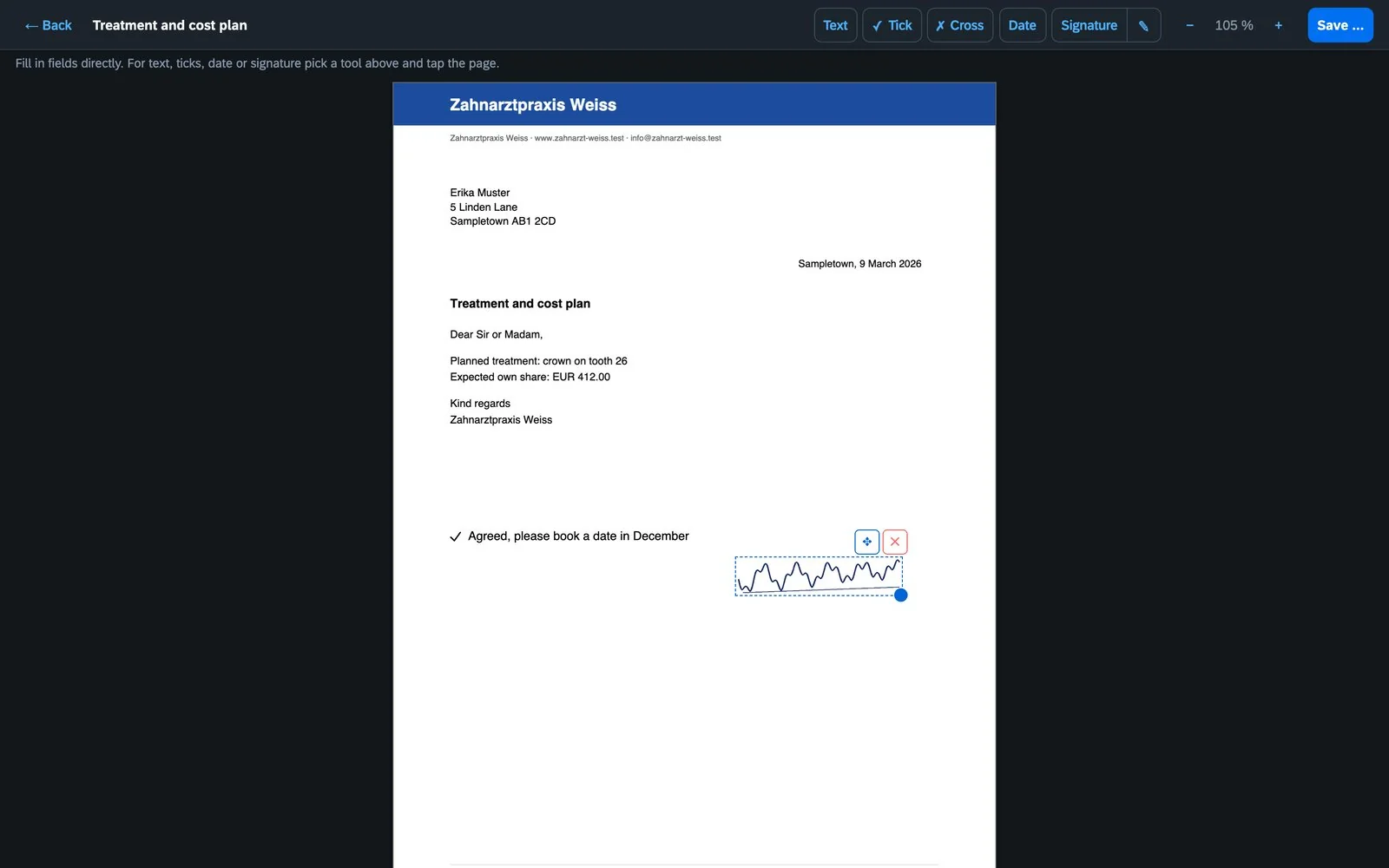
Edit in the preview opens the editor. Form fields can be filled in directly. For everything else pick a tool and tap the page: Text, ✓ Tick, ✗ Cross, Date or Signature. The signature is drawn once with mouse, finger or pen, or loaded as a photo, and stored per person. Save puts a new file into the same folder; the original stays unchanged. Optionally the form is flattened.
Areas and users
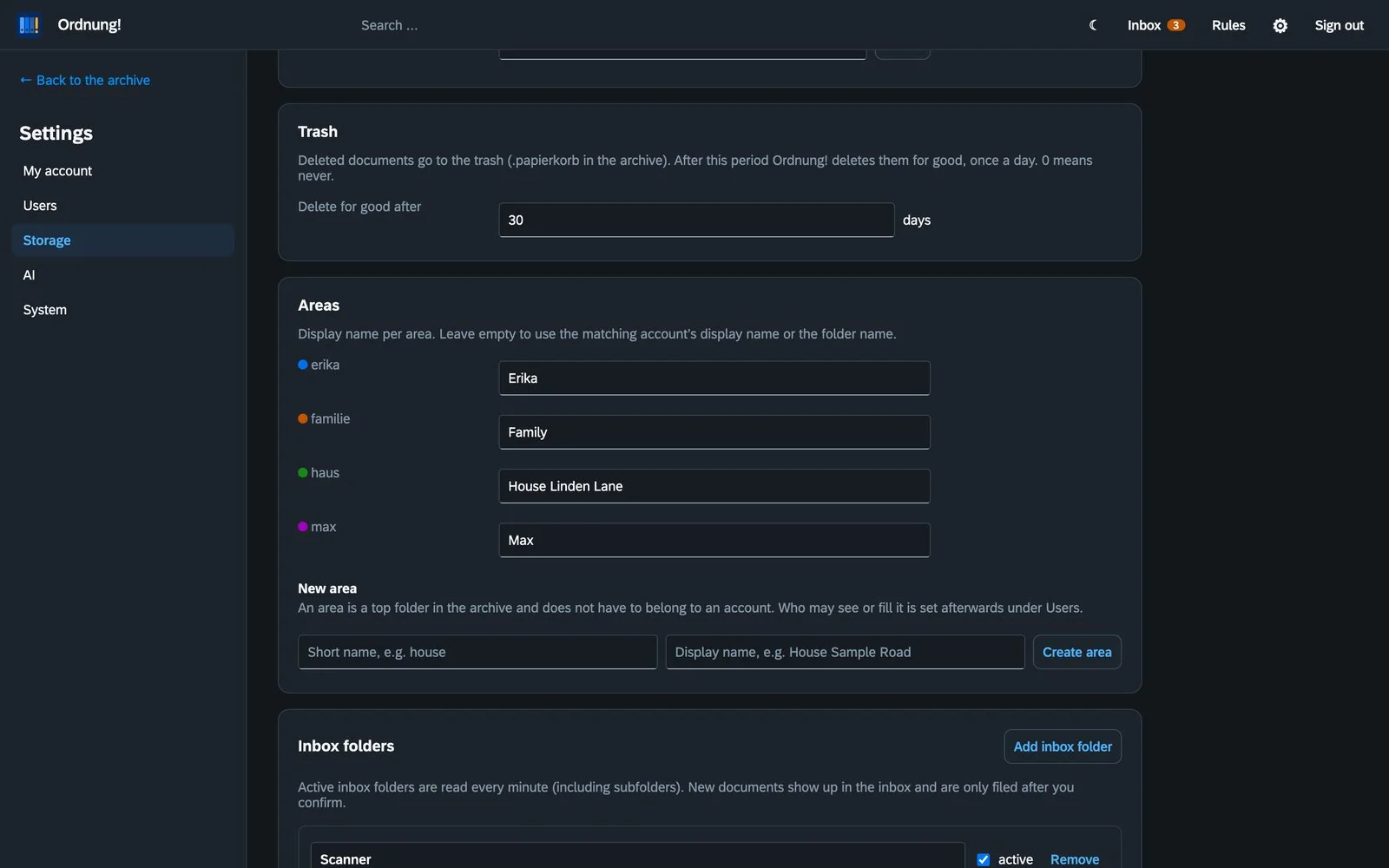
An area is a top folder in the archive: a person (max), the household (family) or something shared (house). It need not belong to an account. New area under Settings → Storage creates it; under Users accounts get read or write access to it. Everyone sees their areas in one shared tree, equal folders of different areas are merged there.
Signing in and security
Behind a reverse proxy, Ordnung! tells whether someone comes from the home network or from outside.
- Second factor: set it up with an authenticator app under Settings → My account, together with ten one-time recovery codes in case the phone is lost.
- Outside only with a second factor: switch it on under Settings → Security, optionally for the home network too.
- Signed-in devices are listed under My account and can be signed out one by one. After five failed attempts an account pauses, first for a minute, then longer.
- Alerts via ntfy: sign-ins from outside, locked accounts and second-factor changes, straight to your phone if you like.
On the phone
Ordnung! runs in the browser of any phone. On the iPhone use Share → Add to Home Screen in Safari and it starts full-screen with its own icon. The folder tree is behind ☰, the preview fills the screen, signing out is under Settings → My account. Drag and drop does not work with a finger. PDFs from mails are easiest to forward to the mail inbox.
Trash
Deleted documents go to .papierkorb/<date>/<old path> in the archive. The page 🗑 Trash lists them with the time left; Restore puts them back. After the configured period (default 30 days) Ordnung! deletes them for good, once a day.
Backup
Back up two things: the archive folder (the documents) and the data folder. Irreplaceable in there: users.json and secret.key (accounts), rules.json, tags.json, senders.json, security.json, mail.json and the other settings files. The search index ordnung.db rebuilds itself from the archive; with many scans OCR then takes a while.
Languages, API and moving over
Language: German, English, French or Italian, per person under Settings → My account.
REST API: everything the UI does, under /api. The key for scripts is under Settings → API and is sent as Authorization: Bearer …. Guide with examples: REST API.
From Paperless-ngx: point the archive at a new, empty folder, give the Paperless originals as learning set and use the import planner. It suggests a target for every Paperless folder; rules and senders are learned from the existing documents.
When something is off
- A document is missing: check the area switches at the top; new files appear after the next scan (Settings → System).
- The inbox stays empty: is the inbox folder active? A supported format? Files younger than 10 seconds are left alone for a moment.
- Search misses a scan: check under Settings → System whether OCR is still running. Documents without readable text, such as password-protected PDFs, are listed there too.
- AI does not answer: Settings → AI → Test connection, check the monthly limit.
- A mail does not arrive: look at Settings → Mail inbox. If it says “unknown sender”, the address is missing on the user.