
CutStock — User Manual
Version 2026.10.43 — cut optimization for panels and bars
CutStock has four tabs: Material & Stock, Projects, Optimization and Settings. The interface is available in German, English, French and Italian, in the SAP Horizon design in light and dark.
Header bar
- License badge — “Community (PolyForm Noncommercial)” or the licensee’s name for a commercial license
- ☾ / ☀ — switches the color theme (system, light, dark)
- Quit (desktop app only) — shuts CutStock down after confirmation; the browser tab closes
Tab 1 — Material & Stock
Materials on the left, stock of the selected material on the right.
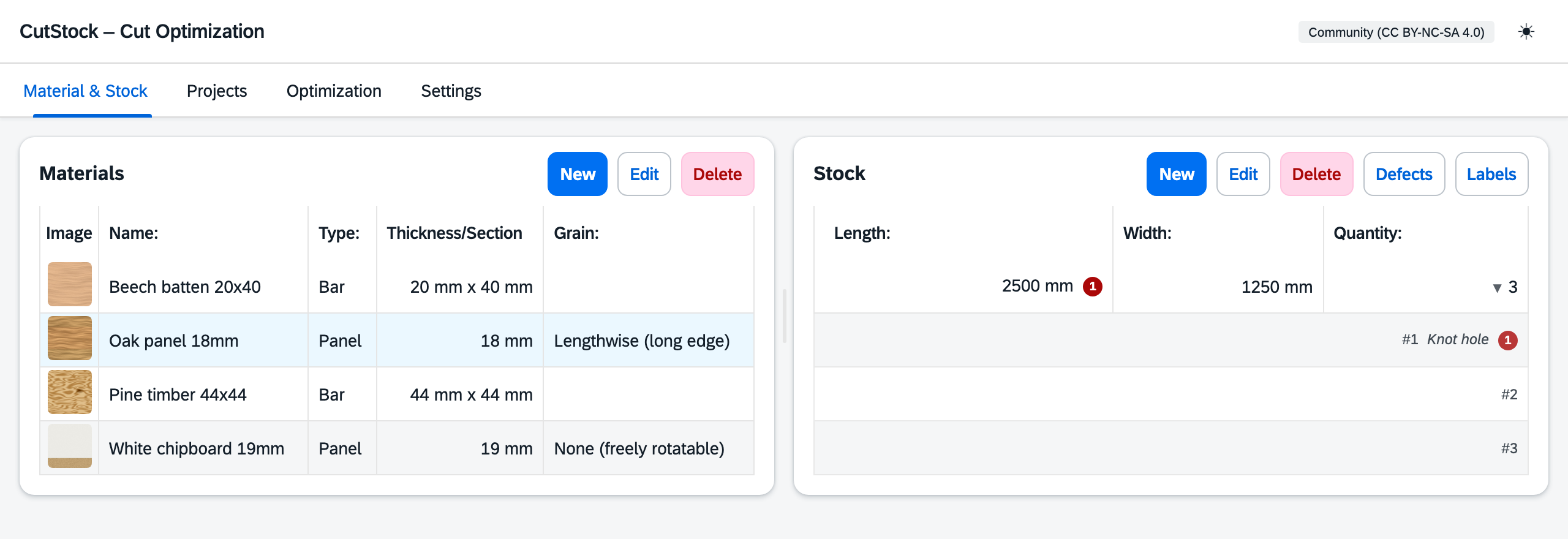
Materials
A material describes a kind of stock — e.g. “Chipboard 19 mm” or “Pine 44×44”. CutStock knows two types:
- Panel — two-dimensional (length × width): chipboard, MDF, plywood, glued panels, glass, sheet metal …
- Bar — one-dimensional (length only): battens, square timber, tubes, profiles …
Create a material: click New (or press N). The dialog asks for:
| Field | Description |
|---|---|
| Name | Free text, e.g. “Oak glued panel 18 mm” |
| Type | Panel or Bar |
| Thickness (panel) | Material thickness — informational only, shown in the material table |
| Cross-section Width / Depth (bar) | Profile dimensions — informational only |
| Grain | None (freely rotatable), Lengthwise (long edge) or Crosswise (short edge). Parts with a grain requirement are only placed matching the grain. |
| Edge trim | Margin removed on every edge (on bars: at both ends) — e.g. for panels with rough edges |
| Min rest length / Min rest width | From this size on an offcut counts as usable and is booked back into stock; smaller offcuts count as waste. |
| Image | Optional photo (JPG, PNG, WebP, max. 5 MB) |
Edit: select a material and click Edit (or E). Delete: Delete (or Del) — after confirmation, all stock pieces of this material and all parts using it in every project are removed as well.
Material images
The material dialog has an image area with Upload image, Change and Remove. The image is applied when you click Save. In the material table it appears as a thumbnail in the “Image” column — hover over it to enlarge.
Stock
Each stock entry has a Length, for panels also a Width, and a Quantity — e.g. “2800 × 2070 mm, 8 pieces” for eight full chipboard panels or “3000 mm, 10 pieces” for ten lengths of square timber.
Individual pieces: if the quantity is greater than 1, clicking ▶ in the “Quantity” column expands the individual pieces: #1, #2, #3 … with note and number of defects. With many identical boards you know exactly which one is meant — ideally write the number on the wood in chalk.
Marking defects
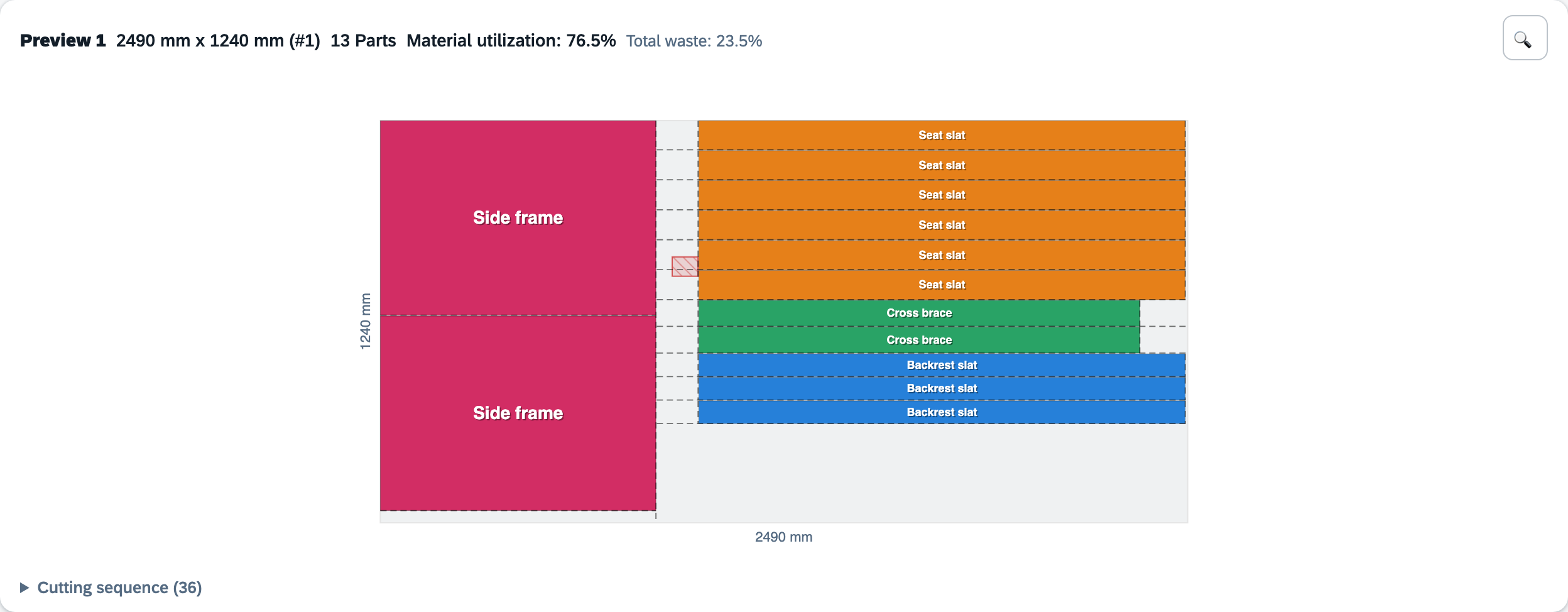
Knots, cracks, discolorations: select a stock entry and click Defects. The dialog lists all defects with Piece #, Position and Length (for panels also Position Y and Width). “Add defect” creates a new one; every row can be edited or deleted.
Stock rows with defects carry a red counter badge. During optimization CutStock never places parts on defective areas — in the cut plan they appear hatched in red, and the plan header names the piece number (e.g. “#1”).
Labels (stock)
Labels in the stock area creates a PDF with one label per existing piece of the selected material: material name, dimensions and stock ID (#ID). Set the paper format in the settings.
Tab 2 — Projects
Projects on the left, parts of the selected project on the right.
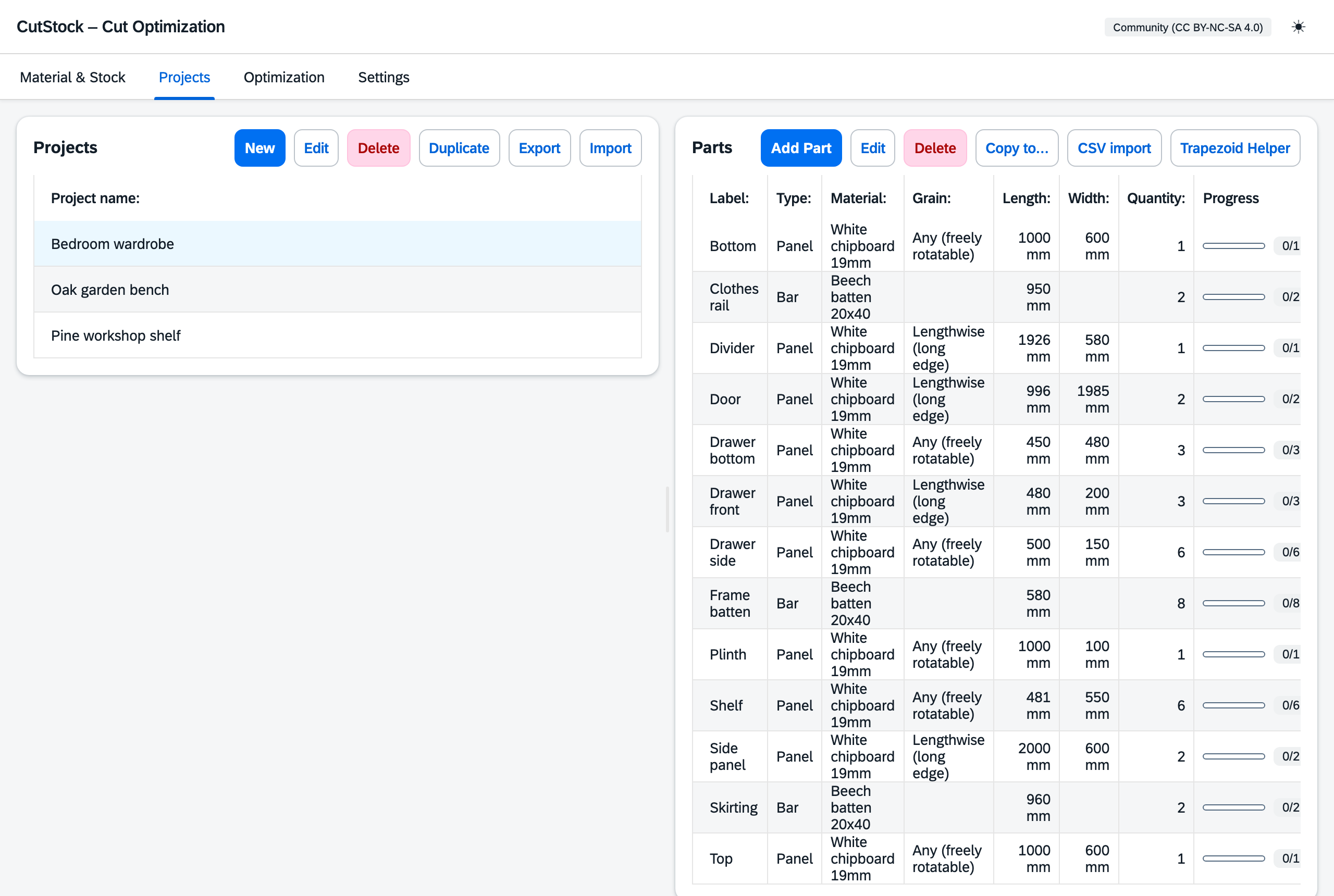
Managing projects
A project groups all parts of a build — e.g. “Bedroom wardrobe” or “Workshop shelf”.
| Button | Function |
|---|---|
| New / Edit / Delete | Create, rename, or delete a project with all its parts |
| Duplicate | Copy with all parts — the cut count starts at 0 again. Handy for variants. |
| Export | Project as a JSON file with all parts, material info and CutStock version (without cut counts) |
| Import | Always creates a new project from a JSON file. Missing materials are created automatically (name, type, grain, stock 0) — add dimensions and stock afterwards. If the file comes from a newer CutStock version, you get a notice. |
Parts
The parts table shows label, type, material, grain, length, width, quantity and Progress (bar with “cut/total”, e.g. 2/4).
New part: select a project and click Add Part (or N):
| Field | Description |
|---|---|
| Label | Name of the part, e.g. “Left side panel” (default: “Part n”) |
| Type | Panel or Bar — the material list only shows matching materials |
| Material | Assignment to an existing material |
| Grain | Any (freely rotatable), Lengthwise (∥ part length) or Crosswise (∥ part width) |
| Length / Width | Finished dimensions of the part |
| Quantity | How many of this part you need |
| Sawn (pieces) | Edit only: correct the cut count manually |
Copying parts
Copy to… copies the selected part or all parts into another project (What to copy? → Target project → Copy). Copies start uncut.
CSV import
CSV import loads parts lists from Excel, LibreOffice & co. Delimiters and columns are detected automatically; supported columns are label, length, width, quantity, grain and material in any order.
Before importing, a dialog shows the number of detected parts and the unit, and asks for a material for rows without a material column. Rows with an unknown material name are skipped and reported — unlike the JSON import, no material is created.
Trapezoid helper
For stair treads and other trapezoid parts: Trapezoid Helper calculates the enclosing rectangle from Straight Edge, Depth Left, Depth Right and an optional Offset, and creates the parts. Also set Label Prefix (e.g. “Tread” → “Tread 1”, “Tread 2” …), material (panels only), grain and quantity. A live preview shows the trapezoid inside the rectangle.
Tab 3 — Optimization
Choose project, material, saw blade and algorithm, then click Optimize (or R). The material list only shows materials for which the project still has open parts. Changing any selection discards the displayed result.
Selection
| Field | Description |
|---|---|
| Project | Its open (not yet cut) parts are planned |
| Material | Only parts of this material are considered |
| Saw blade | Determines the kerf added between parts |
| Algorithm | Fast (Greedy), Nested Guillotine (Panels) or Thorough (GA) — see below |
Algorithms
All methods produce guillotine cuts: every cut runs from edge to edge and can be made with a table saw or circular saw.
| Algorithm | Panels (2D) | Bars (1D) |
|---|---|---|
| Fast (Greedy) | Best area fit: each part goes into the best-fitting free area — very fast | Exact optimization (ILP) |
| Nested Guillotine (Panels) | Nested strips with smart cut directions — default, a good standard | Exact optimization (ILP) |
| Thorough (GA) | Genetic algorithm: searches longer and is never worse than Nested | Genetic algorithm |
Bars: with “Fast” and “Nested”, CutStock solves the split as an integer linear program (ILP, SciPy) — as few bars as possible. If defects are recorded for the material, a best-fit method that skips defective areas is used instead.
Result and cut plan
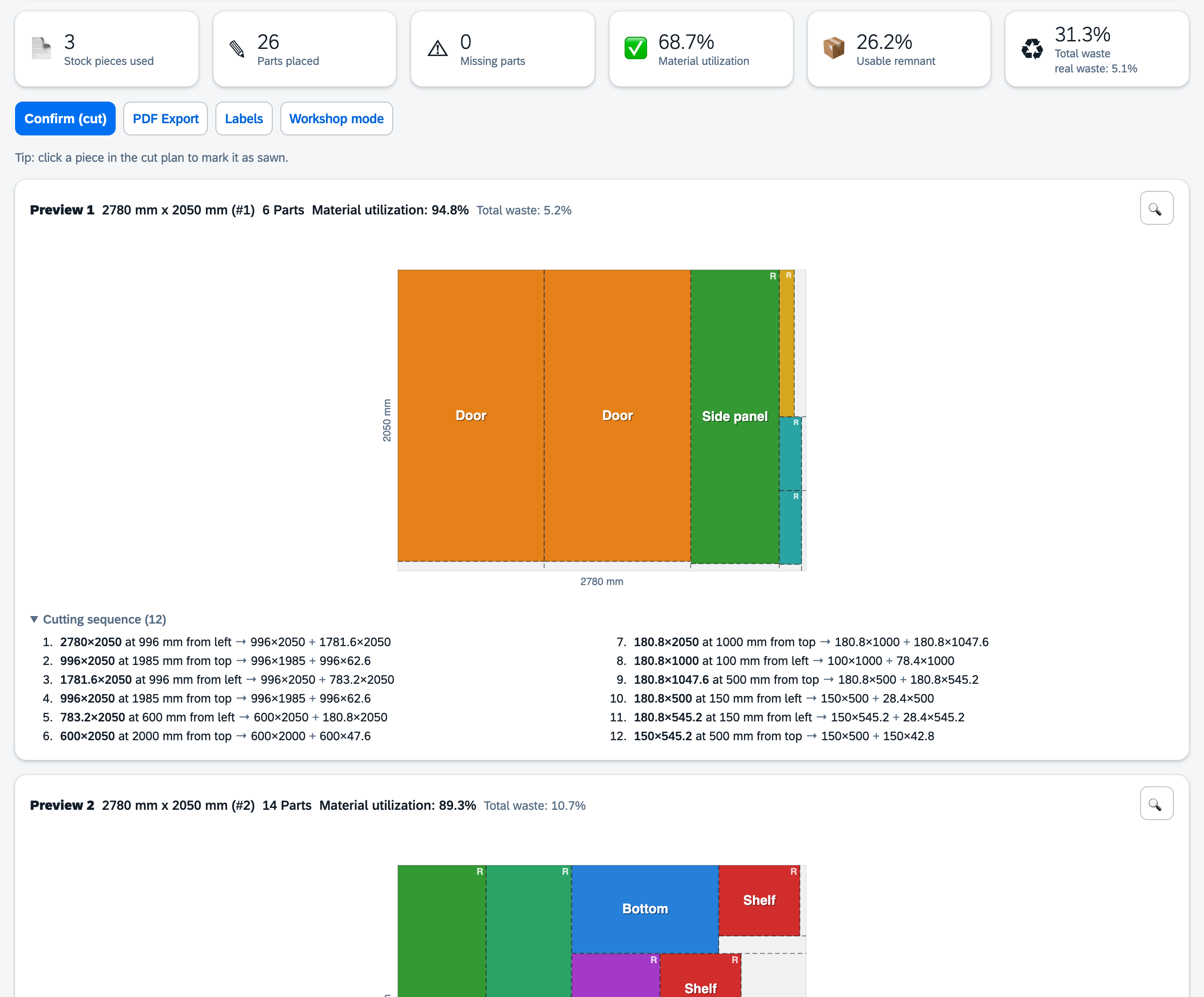
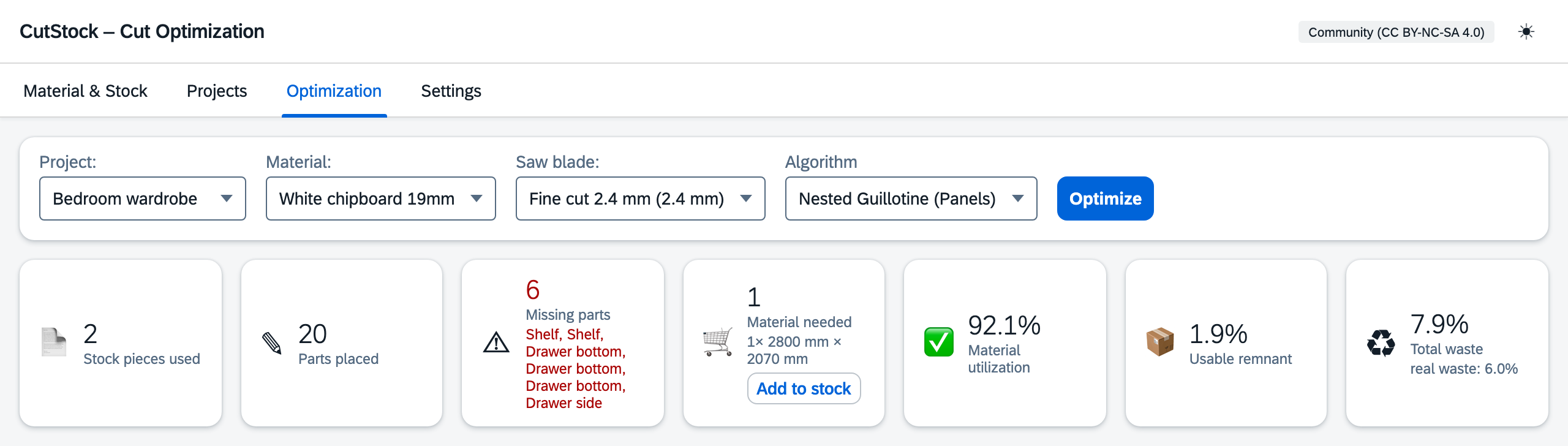
Tiles: Stock pieces used · Parts placed · Missing parts · Material needed (only if something is missing) · Material utilization · Usable remnant · Total waste (with “real waste” = unusable scrap).
Cut plans: one “Preview n” card per stock piece with dimensions, piece number (#n), number of parts, utilization and waste. Parts are color-coded and labeled (if there is room); “R” marks rotated parts. On bars, parts are ordered long to short, and the offcut at the end is shown in grey with its length.
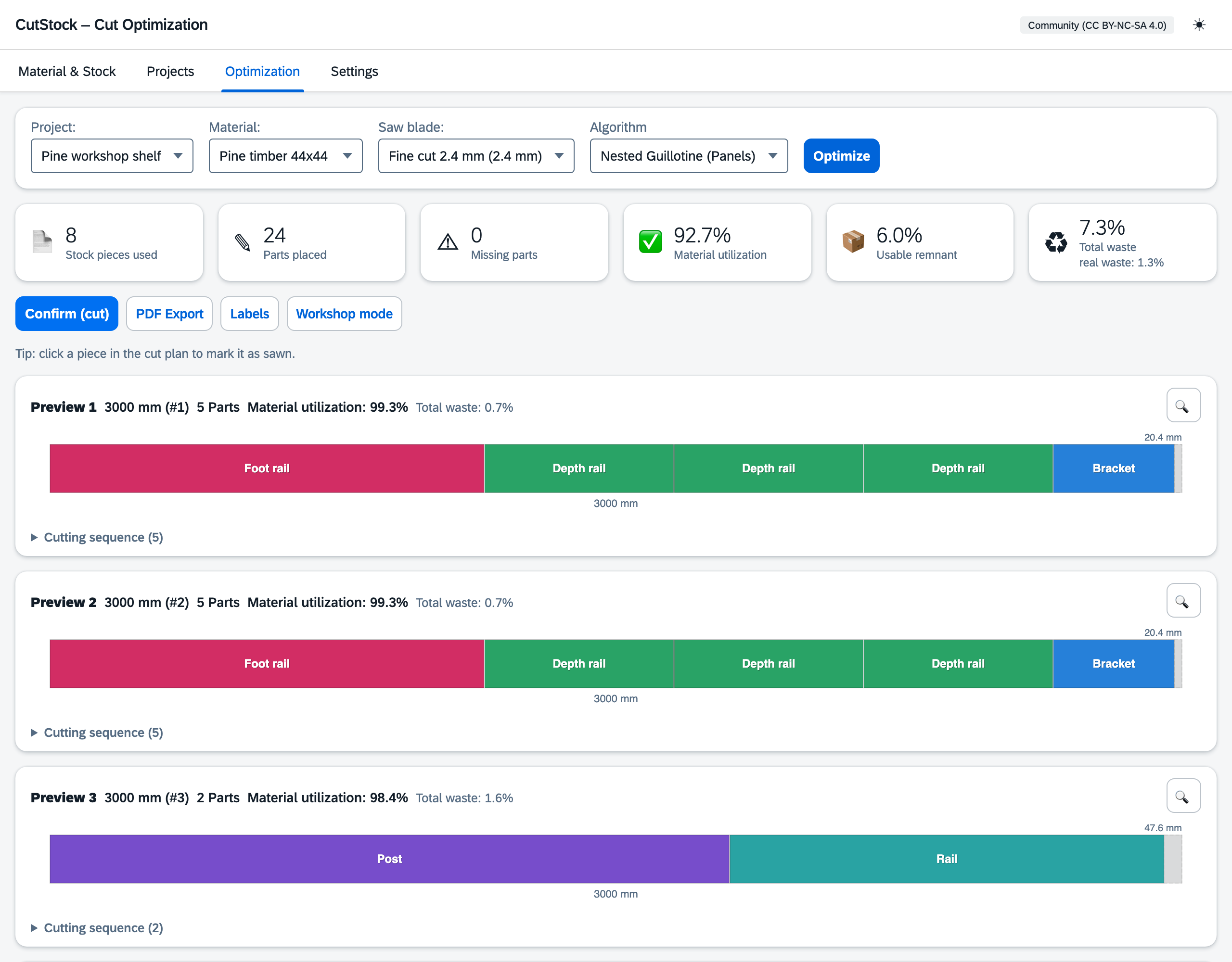
Cutting sequence: below each plan you can expand “Cutting sequence (n)” — for panels e.g. “2780×2050 at 996 mm from left → 996×2050 + 1781.6×2050”, for bars “label: cut length to length”. Hovering a step highlights the cut in red in the plan.
Marking as cut: click a part in the plan to tick it off, click again to undo. With the first ticked part of a stock piece, that piece is deducted from stock and usable offcuts are booked in.
Missing parts and material needed
If the stock is not enough, the Missing parts tile shows the number and names of the parts that could not be placed. Next to it, the Material needed tile estimates how many additional panels or bars are required (in the size of your existing stock pieces, or a standard size if there is no stock). Add to stock books this requirement into stock — then simply optimize again.
Actions after optimization
| Button | Function |
|---|---|
| Confirm (cut) | Applies the whole plan after confirmation: deduct stock pieces, book offcuts, mark parts as cut. Parts already ticked off are not counted twice. |
| PDF Export | Cut plans with parts list (#, label, length, width, stock ID), for panels also the cutting sequence — print it for the saw. The PDF is in German and in mm. |
| Labels | One label per part: label, dimensions (“(R)” for rotated parts), project · material and plan number (“P1”) |
| Workshop mode | Full-screen view for the tablet at the saw (see below) |
Workshop mode
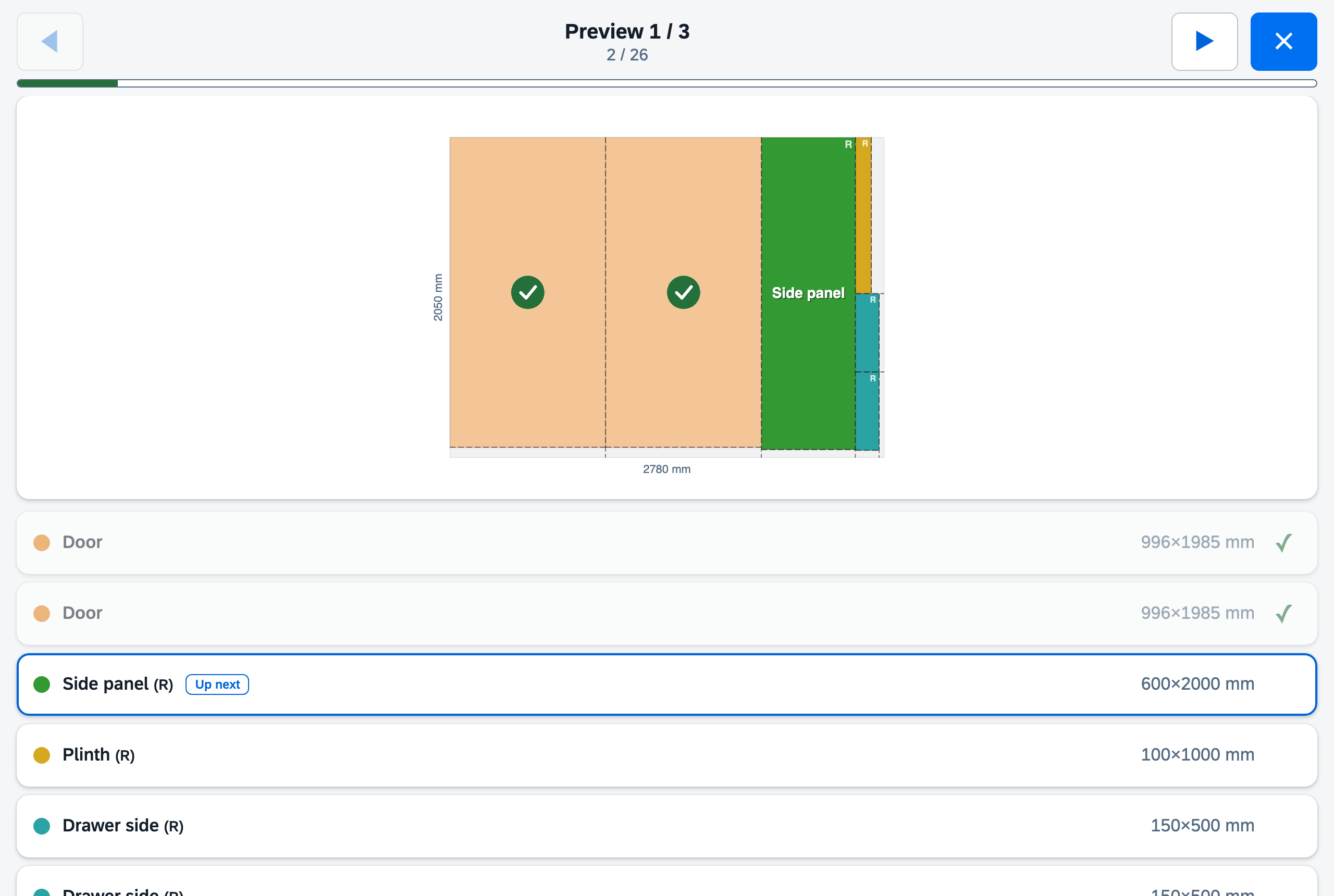
- One stock piece per page with a large plan and parts list
- Tick off by tapping in the list or the plan — synced with the normal view and the stock
- “Up next” marks the next part to cut; overall progress at the top
- Page through with the arrow buttons or ← →; Esc or ✕ closes
- When everything is done, “All pieces sawn” appears
http://<computer-IP>:8421.Tab 4 — Settings
Appearance
| Setting | Options |
|---|---|
| Language | Deutsch, English, Français, Italiano |
| Unit | Millimeters (mm) or centimeters (cm) — applies to all input and display |
| Color theme | Auto (system), light or dark |
Labels
Paper format for all label PDFs:
- A4 sheet 3×8 — 70 × 36 mm (Avery 3475), 24 per sheet
- A4 sheet 3×7 — 63.5 × 38.1 mm (Avery L7160), 21 per sheet
- Label printer 89 × 36 mm — e.g. Dymo 99012
- Label printer 62 × 29 mm — e.g. Brother DK-11209
- Custom — any width and height, one label per page
REST API
Every function is also available as a REST API under /api/ — for scripts, automation and integrations. An interactive endpoint overview is available at /docs.
- API key — create it with Generate, copy it with Copy. If a key is set, external programs must send it as
Authorization: Bearer <key>. The web UI itself and requests from the same machine need no key. - Without a key the API is open to anyone who can reach the server — so with Docker on your home network, better set one.
- Enable API and Port (default 8421) only affect the desktop app: when enabled, CutStock is reachable on the network after a restart; when disabled, only on your own computer. In the Docker version the API is always active.
Backup
- Create Backup — downloads
cutstock_backup_YYYY-MM-DD.zip: the complete database (materials incl. images, stock, individual pieces, defects, projects, saw blades) and the settings (incl. license key and API key). - Restore Backup — after confirmation, replaces all current data with the ZIP file; the page then reloads.
License
CutStock is licensed under the PolyForm Noncommercial 1.0.0 — free for private, non-commercial use, including schools, non-profits, and public institutions. For business use, a commercial license is available on request (request form on the project page).
Paste your license key into the License key field and click Activate. You then see the license type, Licensed to and Valid until (or “Unlimited”); expired licenses are marked. Remove returns to the community license.
About / Links
- Version — installed version
- Project page (WorldGate) and Source code on GitHub
- Check for updates — checks GitHub for a newer version
Saw blades
Manage saw blades with name and kerf width (New, Edit, Delete). The kerf is added as material loss between two parts — typical circular saw blades have 2.4–3.2 mm.
Keyboard shortcuts
The most important actions are available by key. The keys for New, Edit, Delete, Stock and Optimize are freely assignable: in Settings under “Keyboard Shortcuts”, click the key and press the new one (Esc cancels). Keys already in use are rejected.
| Key | Action |
|---|---|
| 1 – 4 | Switch tab (fixed) |
| N | New — a material in the material tab, a part in the projects tab (a project if none is selected), a saw blade in settings |
| E | Edit selected item — in the material tab the selected stock piece, otherwise the material |
| Del / ⌫ | Delete selected item (same logic as E) |
| S | New stock item (material tab) |
| R | Run optimization (optimization tab) |
| Enter | Save dialog (fixed) |
| Esc | Close dialog, zoom or workshop mode (fixed) |
Shortcuts are inactive while the cursor is in an input field.
Installation
Desktop app (macOS / Windows)
Download from the GitHub releases page. The builds are not code-signed:
- macOS: on first launch, right-click the app → “Open”
- Windows: “More info” → “Run anyway”
The app starts a local server and opens CutStock in your default browser; no internet connection is needed. On macOS the data lives in iCloud Drive/CutStock (if iCloud is enabled) and syncs between Macs; on Windows in %APPDATA%\CutStock. If you start CutStock on a second Mac, that one takes over and the first instance shuts down — so two computers never work on the same database at once.
Web app (Docker)
For NAS, home server or Raspberry Pi (amd64 and arm64):
services:
  cutstock:
    image: ghcr.io/orohde/cutstock:latest
    container_name: cutstock
    restart: unless-stopped
    ports:
      - "8420:8000"
    volumes:
      - ./data:/data
    environment:
      - CUTSTOCK_DB=/data/cutstock.db
Start with docker compose up -d — CutStock then runs at http://localhost:8420 and is reachable from every device on your network. The database lives in the ./data folder.
CutStock version 2026.10.43 · Back to the project page · GitHub · PolyForm Noncommercial 1.0.0